Permissions
Scoped Storage and the 'All Files Access' Trap
One permission can read every photo, document, and download on your phone. Most apps don't need it.

By Adrián Vega
Published 20 November 2025 · Updated 24 June 2026 · 7 min read

For a long time, the way Android handled files was a bit of a "Wild West" situation. If you gave an app permission to access your storage, it could basically see everything: your photos, your downloads, even the files created by other apps. Google eventually realized this was a privacy nightmare and introduced "Scoped Storage." It changed everything, but it also introduced a new, confusing permission called "All files access" that I see way too many people accidentally granting.
How scoped storage works
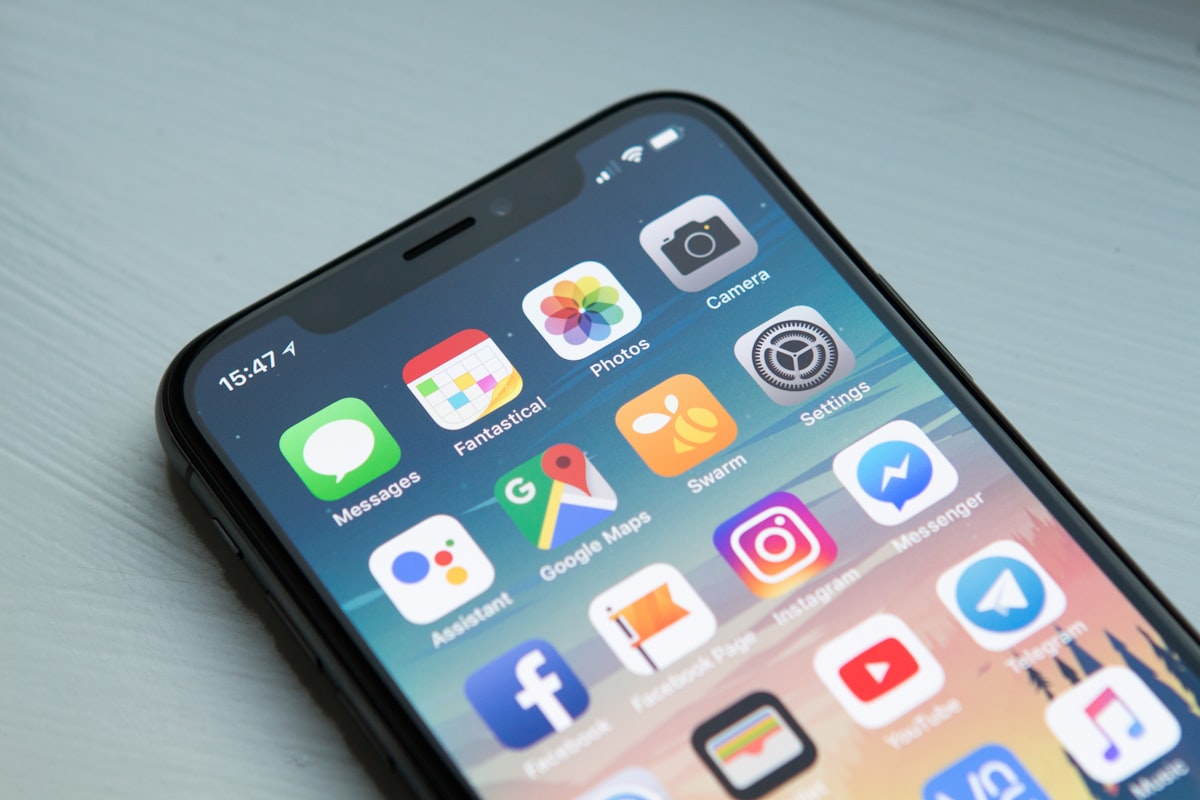
Think of Scoped Storage like an apartment building. In the old days, every app had a master key to the whole building. Now, with Scoped Storage, every app gets its own private apartment (a specific folder). It can do whatever it wants inside that folder without asking for permission. But if it want to go into the "common area" (like your Photos or Downloads), it has to ask you for a very specific key.
This is great because it means that a random photo utility can't go poking around in your banking app's local data or reading your private documents. On Android 13 and 14, this went even further. Apps now have to ask for "Photos and videos" or "Music and audio" separately. You don't just give them the keys to the whole "Storage" warehouse anymore. It’s more granular, which is much safer for us as users.
What 'All files access' really grants
Despite Scoped Storage, some apps still need to see everything. These are usually things like file managers (like Solid Explorer or MiXplorer), backup tools, or antivirus scanners. To accommodate them, Google created the "All files access" permission (technically called MANAGE_EXTERNAL_STORAGE). This is the "Nuclear Option."
When you grant this, you are effectively turning off Scoped Storage for that specific app. It can read, modify, and delete any file in your shared storage. I have a specialized document scanner app that asked for this, and it made me pause. Does it really need to see my entire "Downloads" folder and my music library just to save a PDF? Probaby not. Most apps that ask for this only do so because the developer didn't want to bother updating their code to use the newer, safer "Photo Picker" system. It's a shortcut for them, but a risk for you.
Auditing which apps have it
Because this permission is so powerful, Android hides it in a different place than regular permissions like your camera or microphone. It’s tucked away in a menu called "Special app access." Here is how I find it on my phone (and it’s identical on most Android 13/14/15 builds):
- Go to Settings.
- Tap on Apps.
- Scroll to the very bottom and tap Special app access.
- Look for All files access.
When I checked mine today, I only had three apps listed: my file manager, my backup software, and an app I use to "sideload" other apps. If you see a game, a social media app, or a simple "PDF Reader" in this list, you should be very concerned. There is almost no reason for a basic consumer app to have this level of deep system access. One concrete example: a malicious app with All Files Access could scan your storage for "wallet.dat" files or text files named "passwords.txt" and upload them to a server in seconds.
Revoking and what breaks

If you find an app that shouldn't have this permission, revoking it is as simple as flipping the toggle to "off." However, be prepared for some things to break. If it's a file manager, it will suddenly become useless and won't be able to show you any of your files. If it's a backup app, your backups will fail.
The "this is annoying" part: some apps don't just stop working; they will spam you with notifications every time you open them, begging you to turn the permission back on. My advice is to try revoking it first. If the app still lets you do what you need to do—like if a "Gallery" app can still see your photos even without "All files" access—then leave it off. Most modern apps can use the "Media" permissions instead, which are much safer. If the app keeps crashing, it's a sign the developer was lazy, and you might want to look for a better alternative on the Play Store.
OEM file managers
If you're using a Samsung (One UI) or a Xiaomi (HyperOS/MIUI) device, you'll notice they come with their own file managers pre-installed (like "My Files" on Samsung). These apps usually have "All files access" by default. Since they are system apps made by the manufacturer, this is generally okay—you've already trusted Samsung or Xiaomi with the whole operating system, after all.
However, I noticed that on some Xiaomi phones, even the "Theme Store" sometimes asks for broad storage access to save wallpapers. This is where it gets a bit blurry. OEM apps are often exempted from the strictest Scoped Storage rules, but I still like to keep them on a short leash. If you use a third-party file manager like "Files by Google," you might find it’s more transparent about what it’s actually looking at than the built-in OEM version.
Safer file-sharing patterns
The best way to stay safe is to use the "Photo Picker" whenever possible. This is a pop-up window managed by Android itself. When you use it, the app only gets access to the specific photos you tap on. It never even knows the rest of your library exists. If an app prompts you to "Allow access to all photos" or "Allow access to files," see if there is an option to just "Select photos."
I also recommend using cloud storage for sensitive documents. I don't keep a scan of my passport or my social security card in a random folder on my phone's local storage. I keep them in a locked, encrypted vault (like OneDrive's Personal Vault or a dedicated password manager like Bitwarden). Even if a malicious app gets "All files access," it won't be able to get into those encrypted containers. No security fix is perfect, but adding these layers makes it much harder for your data to walk out the door. Just remember: if an app doesn't *need* to see your whole digital life, don't let it.
Key takeaways
- How scoped storage works is where you start — it's the fastest win.
- What 'All files access' really grants: don't skip this — it's where most users leave settings at risky defaults.
- Auditing which apps have it: don't skip this — it's where most users leave settings at risky defaults.
- Revoking and what breaks: don't skip this — it's where most users leave settings at risky defaults.
- Recheck these settings quarterly; OEM updates can reset toggles.
Frequently asked questions
- Does changing these settings break apps?
- Almost never. Modern Android apps must handle a denied permission or restricted access gracefully — they either skip the feature or prompt again when needed.
- Will this drain my battery?
- No. If anything, restricting background access and disabling tracking pipelines reduces battery and data usage.
- Do these steps apply to Android 13, 14 and 15?
- Yes. The menu paths shift slightly between versions and OEM skins (Pixel/stock, Samsung One UI, Xiaomi HyperOS), but the underlying controls behave the same.
References & further reading
Continue reading
Related guides

Android App Permissions Explained: A Complete 2026 Guide
A plain-language walkthrough of how Android's permission system actually works in 2026 — and the five settings most people should change today.
7 min read · Updated 24 Jun 2026
How to Revoke Microphone Access on Android (Step by Step)
If you've ever felt like your phone is listening to you, the fix takes about ninety seconds.
6 min read · Updated 24 Jun 2026
Using the Android Privacy Dashboard: A 24-Hour Audit Tool
A 24-hour timeline of every sensitive permission used on your phone — built into Android since version 12.
7 min read · Updated 24 Jun 2026