Location
Delete Google Location History the Right Way
Google's Timeline goes back years. Here's how to wipe it and stop new entries.

By Adrián Vega
Published 22 September 2025 · Updated 24 June 2026 · 7 min read

I used to love looking at my Google Maps "Timeline." It was like a digital diary of every trip I took, every coffee shop I visited, and every city I traveled to. But then I looked at the data and realized Google knew exactly what time I arrived at my doctor's office and how long I stayed at my friend's house. It felt less like a fun memory lane and more like a detailed surveillance log. Recently, Google changed how this works, moving the data from their servers to your actual phone hardware. It's a step in the right direction, but you still need to clean up the years of data already sitting in the cloud.
What 'Timeline' stores
Google Timeline (formerly Location History) is basically a minute-by-minute log of your life. It uses your phone's GPS, Wi-Fi connections, and even your accelerometer to figure out if you're walking, driving, or cycling. It’s not just a list of places; it’s a path. If I go for a hike, it records the exact trail I took. If I go to a mall, it often knows which specific stores I entered based on the Wi-Fi signals my phone picked up.
The scary part is the volume. If you've had an Android phone for five years, you might have thousands of days recorded. This data is used to "improve" Google services, sure—giving you better traffic predictions or reminding you where you parked—but it's also a massive privacy risk if someone ever gains access to your account. I found entries from a vacation I took in 2017 that were so precise I could see which side of the street I walked on. It's impressive, but also a bit much.
Deleting all history
If you want a fresh start, you have to go into the Maps app. Tap your profile picture in the top right, then hit Your Timeline. Tap the three dots (menu) in the corner and choose Settings and privacy. Toward the bottom, you’ll find an option to "Delete all Location History." It will give you a big warning that you might lose some personalized features, like recommendations for places you've been. I hit that button and felt a genuine sense of relief.
Just a heads up: this is permanent. Once you hit delete, those memories in the Timeline are gone. If you want to keep the data but remove it from Google's hands, you might want to use "Google Takeout" first to download a copy to your computer. But for most of us, clearing the slate is the move. It can take a few minutes for Google to process the deletion across all their servers, so don't be surprised if some of it still shows up for an hour or so after you hit the button.
Setting auto-delete to 3 months
I’m a big fan of automation. I don't want to have to remember to clean my history every month. Google offers an "Auto-delete" feature that is a lifesaver. You can set it to wipe any data older than 3 months, 18 months, or 36 months. I personally set mine to 3 months. This gives the app enough history to show me my recent trips or help me find that restaurant I visited last month, but it doesn't keep a permanent record of my entire life.
To set this up, go back to Settings and privacy in the Map's Timeline section and look for "Auto-delete location history." Select the 3-month option. It's the "Goldilocks" setting—not too short that the app feels "dumb," and not too long that you're building a massive database for advertisers. One concrete example: after I turned this on, my Google Maps still knew my "regular" gym, but it "forgot" the hotel I stayed at during a wedding last summer. Perfect.
Pausing Location History entirely
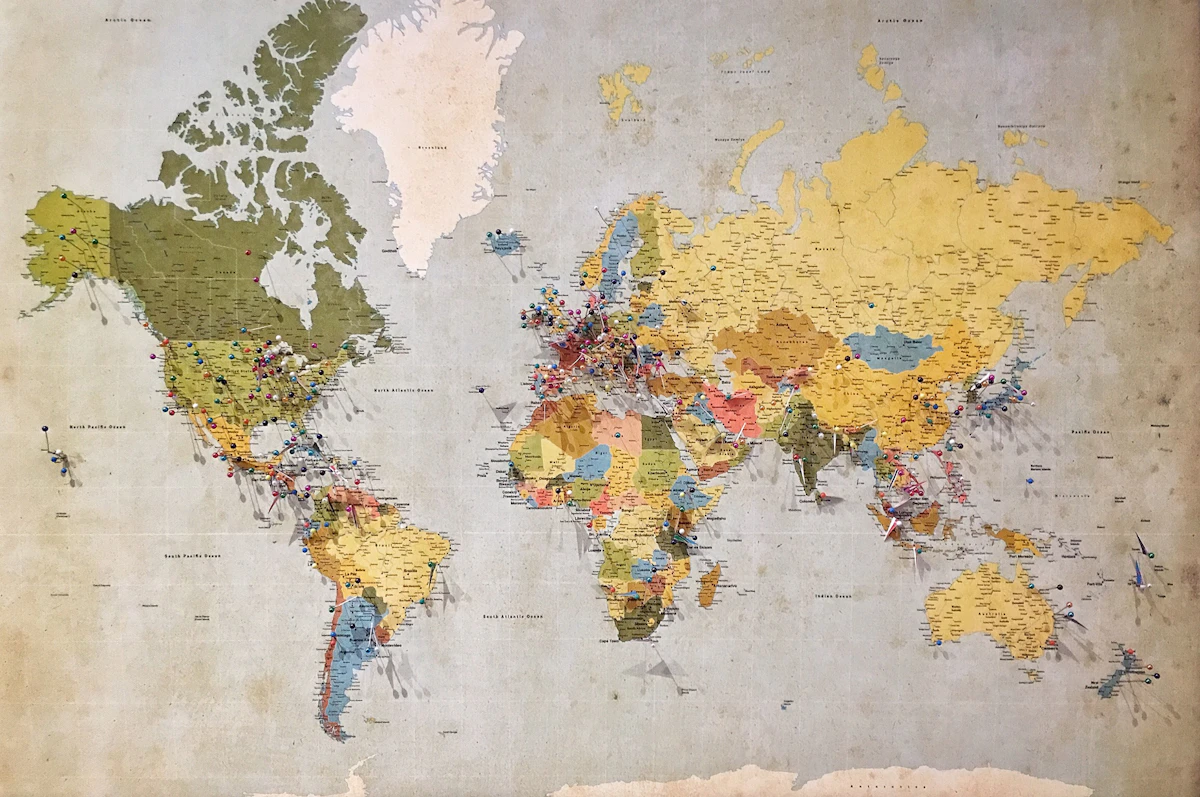
If you don't even want the 3-month buffer, you can just kill the feature at the source. This is called "Pausing" because Google legally can't say it's "off"—they might still use some location data for search results—but it stops the Timeline from recording your movements. You find this under Google Account Settings > Data & Privacy > History Settings > Location History.
When you toggle this off, Google will show you a slightly dramatic screen about how "Find My Device" and real-time traffic might be affected. In my experience, Find My Device still works just fine as long as "Location" (the main system toggle) is on. Pausing Location History just stops the storage of your path over time. It makes your phone feel like a tool you're using in the moment, rather than a tracker that's always taking notes behind your back.
On-device Timeline (Android 14+)
This is a big shift that landed recently on Pixels and newer Samsungs. Google is migrating Timeline data to be stored only on your device by default. This means the map of your life stays on your phone's encrypted storage rather than sitting on a Google server in a data center. If you lose your phone and don't have a backup, your timeline is gone. To me, that is a feature, not a bug.
On my Pixel 7, I got a notification asking me to "Review my Settings" for this transition. If you haven't seen this yet, you can check in the Maps app under the Timeline settings. There’s a section for "On-device storage." You can even set up an encrypted backup to your Google account that Google themselves can't read. It's a bit technical to set up, but it's the gold standard for keeping the convivence of Maps without the privacy nightmare. Just make sure you remember your backup PIN, or you’ll be locked out of your own history.
Verifying it's actually off
It’s always worth checking your work. The first time I "turned off" location history, I realized I had accidentally only turned it off for one of my two Google accounts. To verify, go to the Google Activity Controls website on a desktop or in your mobile browser. Look for the "Location History" section. It should clearly say "Paused" or "Off."
One small caveat: "Location History" is separate from "Web & App Activity." Even if you pause Location History, Google might still save your "general area" when you search for something like "pizza near me" in the Google app or Chrome. If you want to be totally invisible, you have to clear that activity too. It’s a bit of a game of whack-a-mole, but clearing the Timeline is the biggest and most important step for your privacy. Once that's done, you've removed the most invasive part of the tracking.
Key takeaways
- What Timeline stores is where you start — it's the fastest win.
- Deleting all history: don't skip this — it's where most users leave settings at risky defaults.
- Setting auto-delete to 3 months: don't skip this — it's where most users leave settings at risky defaults.
- Pausing Location History entirely: don't skip this — it's where most users leave settings at risky defaults.
- Recheck these settings quarterly; OEM updates can reset toggles.
Frequently asked questions
- Does changing these settings break apps?
- Almost never. Modern Android apps must handle a denied permission or restricted access gracefully — they either skip the feature or prompt again when needed.
- Will this drain my battery?
- No. If anything, restricting background access and disabling tracking pipelines reduces battery and data usage.
- Do these steps apply to Android 13, 14 and 15?
- Yes. The menu paths shift slightly between versions and OEM skins (Pixel/stock, Samsung One UI, Xiaomi HyperOS), but the underlying controls behave the same.
References & further reading
Continue reading
Related guides

How to Stop Android from Tracking Your Location (2026)
Location is the most sensitive sensor on your phone. Here are the four settings that matter and the order to change them in.
7 min read · Updated 24 Jun 2026
Approximate vs Precise Location on Android: Which to Use
Android lets you give most apps a fuzzy version of your location. Here's when that's the right choice.
7 min read · Updated 24 Jun 2026

How to Delete Your Google Maps Timeline (and Keep It Off)
Maps Timeline is a private map of everywhere you've been. Here's how to wipe it and prevent it from coming back.
6 min read · Updated 24 Jun 2026