Permissions
Why So Many Apps Want Contacts Access (and How to Refuse)
Contacts uploads are how social apps build shadow profiles of people who never signed up. Here's how to stop it.

By Adrián Vega
Published 18 October 2025 · Updated 24 June 2026 · 7 min read

I used to be very "click-happy" with app permissions. If an app asked for my contacts, I figured it just wanted to make things easier for me. Then I realized that my address book isn't just my data—it’s my mom’s private cell number, my boss's home address, and that one friend who specifically asked me never to put their info online. Giving an app access to your contacts is basically handing over a map of your entire social circle to a company you might not even trust.
Why apps want your address book

The "official" reason is almost always "to help you find friends." When you download a new social app or a payment tool like Venmo, they want to scan your list to see who else is already there. It makes the onboarding process seamless. If the app sees "John Smith" in your contacts and John has an account, it can suggest you follow him.
The "unofficial" reason is data mapping. Even if you don't use a certain social media platform, if five of your friends upload their contacts and you're in all of them, that company now has a very accurate profile of you. They know your name, your phone number, and who you hang out with. For developers, this data is gold. It helps them build "social graphs" which are incredibly valuable for targeted advertising and keeping you hooked on their platform.
The shadow-profile problem
This is the part that really surprised me when I first looked into it. A "shadow profile" is a collection of data a company has on someone who hasn't even signed up for their service. If I give an app my contacts, I am essentially "doxing" everyone in my phone who chose not to use that app. To me, that feels like a breach of my friends' trust.
Think about a typical contact entry. You might have a name, two phone numbers, an email address, a birthday, and maybe even a physical address. Multiply that by the 200 people in your phone. That’s a lot of data being sucked up by a server in another country just because you wanted to see if your high school friends were on a new photo-sharing app. It's a massive exchange of privacy for a tiny bit of convenience.
Revoking the permission
The good news is that Android has gotten much better at letting us take this back. You don't have to delete the app to protect your contacts. On my Pixel 7, the process only takes a minute. I usually do a "contact audit" once a month.
- Go to your phone’s Settings.
- Tap Apps and then See all apps.
- Pick an app you're suspicious of (like a random mobile game or a basic utility).
- Tap Permissions.
- If you see Contacts under the "Allowed" section, tap it and select Don't allow.
On Samsung devices running One UI 6, you can also go to Settings > Security and privacy > Privacy > Permission manager to see a bird's-eye view of every single app that has access to your contacts. Seeing that "65 apps have access to your contacts" is usually a pretty big wake-up call. I managed to cut mine down from 42 apps to just 5 (mostly just Phone, Messages, and WhatsApp).
Selective sharing alternatives
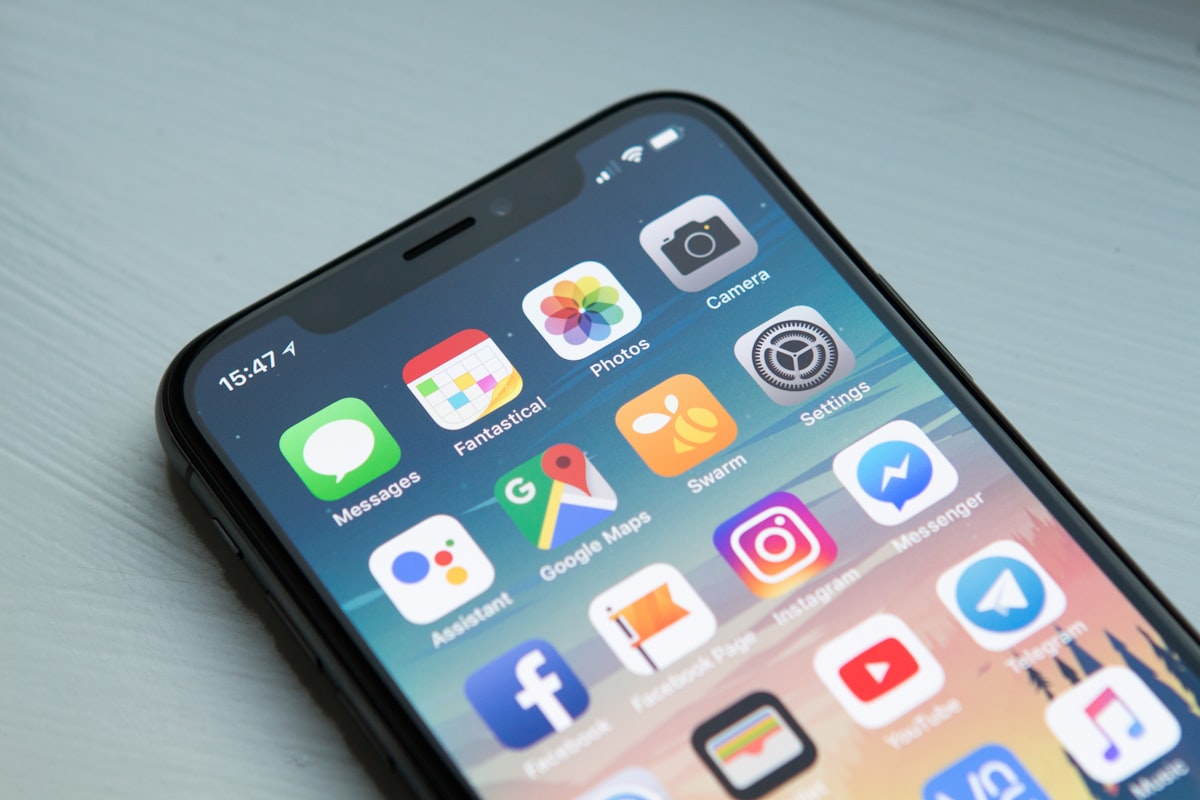
You don't have to give an app your whole address book just to share one thing. Most modern apps use the Android "Sharesheet." If you want to send a photo to your sister, you don't need to give the photo app access to all 300 contacts. You just hit the share button, and the OS displays your frequent contacts. The app itself never actually sees the whole list.
In some newer versions of Android, there is talk of a "contact picker" similar to the "photo picker." This lets you select exactly one person to share with an app while keeping the rest of your list hidden. Until that is universal, my best advice is to hit "Deny" when an app asks for contacts. If the app absolutely needs a contact to work—like a banking app for a wire transfer—it will usually let you manually type in the name and number instead. It takes ten extra seconds, but it's much safer.
Samsung Contacts vs Google Contacts
One thing that confused me on my first Samsung phone was the two different contact apps. You usually have "Samsung Contacts" and "Google Contacts." They both talk to the same database on your phone, but they sync to different clouds. Samsung usually wants to sync your contacts to your Samsung Account, while Google wants them in your Gmail account.
If you're trying to limit how many companies have your data, pick one and stick to it. I personally disable the Samsung Cloud sync for contacts and just use Google, since I'm already using an Android phone. Having your data spread across two different cloud providers just doubles the "attack surface" if one of them ever has a data breach. You can check your sync settings in Settings > Accounts and backup > Manage accounts.
Cleaning up already-uploaded data
Here is the "honest" moment: revoking the permission on your phone doesn't delete the data that's already on the app's servers. If you gave Facebook your contacts in 2018, they still have them even if you turn off the permission today. That is the frustrating reality of the internet.
To truly clean up, you often have to go into the app's own settings. For example, in the Facebook app, you have to navigate to "Manage Contacts" in the settings menu to delete the info you previously uploaded. Many big apps (Instagram, LinkedIn, X) have similar hidden menus. It's a chore, I know. But if you're serious about your privacy, it's a necessary one-time cleanup. I spent an hour doing this last year and found that LinkedIn had contact info for people I hadn't spoken to in a decade. It felt incredibly good to hit that "Delete All" button.
Key takeaways
- Why apps want your address book is where you start — it's the fastest win.
- The shadow-profile problem: don't skip this — it's where most users leave settings at risky defaults.
- Revoking the permission: don't skip this — it's where most users leave settings at risky defaults.
- Selective sharing alternatives: don't skip this — it's where most users leave settings at risky defaults.
- Recheck these settings quarterly; OEM updates can reset toggles.
Frequently asked questions
- Does changing these settings break apps?
- Almost never. Modern Android apps must handle a denied permission or restricted access gracefully — they either skip the feature or prompt again when needed.
- Will this drain my battery?
- No. If anything, restricting background access and disabling tracking pipelines reduces battery and data usage.
- Do these steps apply to Android 13, 14 and 15?
- Yes. The menu paths shift slightly between versions and OEM skins (Pixel/stock, Samsung One UI, Xiaomi HyperOS), but the underlying controls behave the same.
References & further reading
Continue reading
Related guides

Android App Permissions Explained: A Complete 2026 Guide
A plain-language walkthrough of how Android's permission system actually works in 2026 — and the five settings most people should change today.
7 min read · Updated 24 Jun 2026
How to Revoke Microphone Access on Android (Step by Step)
If you've ever felt like your phone is listening to you, the fix takes about ninety seconds.
6 min read · Updated 24 Jun 2026
Using the Android Privacy Dashboard: A 24-Hour Audit Tool
A 24-hour timeline of every sensitive permission used on your phone — built into Android since version 12.
7 min read · Updated 24 Jun 2026