Location
Approximate vs Precise Location on Android: When to Use Each
Most apps that ask for location don't need GPS-level accuracy. Approximate is usually enough.

By Adrián Vega
Published 4 September 2025 · Updated 24 June 2026 · 7 min read
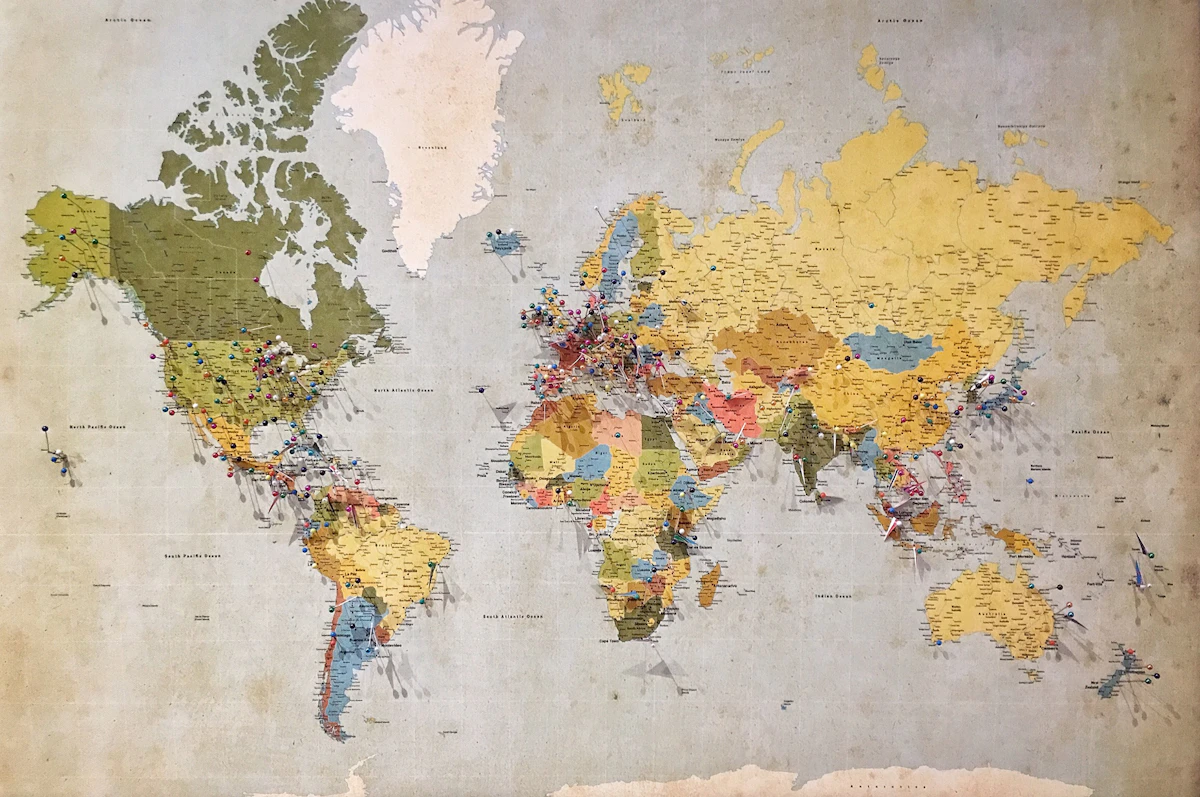
I used to think that giving an app my location was a binary choice—either they knew exactly where I was standing, or they knew nothing at all. Then, while setting up a weather app on my Samsung, I noticed two little circles in the permission window: "Approximate" and "Precise." It turns out, most of the time, we are giving away way more detail than the app actually needs. If a weather app knows you’re in South Chicago, it can tell you if it's raining; it doesn't need to know which house you're sitting in.
What 'approximate' actually means

When you select "Approximate," Android uses what I call the "neighborhood view." Instead of using GPS satellites to pin you down to within 3 meters (about 10 feet), the system uses Wi-Fi networks and cell towers to place you within a roughly 2-square-kilometer area. To the app, you're just a dot somewhere in a large circle. This is similar to how we might describe our location to a stranger: "I live near the stadium," rather than giving them our front door key.
On my Pixel, I can actually see how this works in the privacy dashboard. Approximate location relies heavily on "network location providers." It’s much lighter on your battery because your phone doesn't have to keep its power-hungry GPS radio firing at full blast to talk to satellites. It’s a fuzzy version of your location that preserves your privacy while still letting "local" features work.
Apps that genuinely need precise
There are some apps where "Approximate" just makes them useless. Navigation is the big one. If you’re using Google Maps or Waze to get through a complex highway interchange, being off by two kilometers is the difference between getting home and driving into a lake. I always grant "Precise" to navigation, ride-sharing (like Uber or Lyft), and fitness trackers like Strava that need to map my actual jogging path.
Another legitimate use is for "Find My Device" services. If I lose my phone between the couch cushions, an approximate location only tells me it’s in my apartment building. I need precise coordinates to actually find the hardware. I also tend to give precise access to food delivery apps, but only while using them. It’s a lot easier for the driver if they aren't wandering around the entire block looking for my unit number.
Toggling per app
The great thing is that you can change your mind later. You don't have to delete the app to change this setting. On most Android 13+ phones, you can head to Settings > Privacy > Permission manager > Location. You’ll see a list of every app that has access. When you tap on one, like Instagram, you’ll see a toggle switch labeled "Use precise location."
I recently did a sweep of my own phone and found that 12 apps had "Precise" access when they absolutely didn't need it. My retail apps, for instance, were tracking my exact aisle in the store just to show me coupons. I toggled those off immediately. It’s a one-second fix that significantly narrows the trail of digital breadcrumbs you're leaving behind. Just be aware that some apps might complain with a "Location services are limited" banner once you flip the switch.
Weather, news, and dating apps

Weather apps are the biggest offenders. They are notorious for collecting and selling precise location data to advertisers. I’ve found that "Approximate" is perfectly fine for getting a forecast. Even if I move three blocks away, the temperature isn't going to change. News apps are the same—they just need to know what city you're in to show you local headlines.
Dating apps are a bit of a gray area. They use location to show you people nearby. If you set it to "Approximate," you might see people who are a bit further away, or the "distance" readout might be slightly less accurate. To me, that's a fair trade-off for not letting a company know my exact coordinate 24/7. It’s honestly surprising how many apps default to requesting the highest level of precision when they could function perfectly well on the "neighborhood" setting.
Samsung One UI handling
If you’re on a Samsung (One UI 6 or 7), the layout is slightly different but the logic is the same. Samsung likes to put a visual representation in the prompt. When the location request pops up, you'll see two map icons. The one on the left shows a wide circle (Approximate), and the one on the right shows a pinpoint (Precise). It's very intuitive.
Samsung also has a shortcut in the "Quick Settings" panel. You can long-press the "Location" icon and it takes you straight to the list of app permissions. I find Samsung’s implementation a bit more aggressive about telling you when an app is using your location in the background. If you see a blue dot in your status bar on a Galaxy, you can tap it to see exactly which app is currently looking at your precise location. It’s a great way to catch "leaky" apps in the act.
Testing whether approximate is working
If you want to see if this is actually doing anything, you can run a simple test. Set your browser (like Chrome) to "Approximate" location, then go to a site like "WhatIsMyBrowser" or search for "where am I" on Google. Look at the map it generates. If "Approximate" is working, the map should show you in the general vicinity of your town, but the pinpoint will be hundreds of yards or even miles away from your actual house.
One caveat: even with "Approximate" turned on, your IP address can still give away your general city or ZIP code. This fix isn't a magic invisibility cloak. It just stops the app from using your phone’s high-precision hardware to track your exact movements. It's about reducing the resolution of the data you're handing over. For most of my apps, "low resolution" is more than enough for them to do their jobs.
Key takeaways
- What 'approximate' actually means is where you start — it's the fastest win.
- Apps that genuinely need precise: don't skip this — it's where most users leave settings at risky defaults.
- Toggling per app: don't skip this — it's where most users leave settings at risky defaults.
- Weather, news, and dating apps: don't skip this — it's where most users leave settings at risky defaults.
- Recheck these settings quarterly; OEM updates can reset toggles.
Frequently asked questions
- Does changing these settings break apps?
- Almost never. Modern Android apps must handle a denied permission or restricted access gracefully — they either skip the feature or prompt again when needed.
- Will this drain my battery?
- No. If anything, restricting background access and disabling tracking pipelines reduces battery and data usage.
- Do these steps apply to Android 13, 14 and 15?
- Yes. The menu paths shift slightly between versions and OEM skins (Pixel/stock, Samsung One UI, Xiaomi HyperOS), but the underlying controls behave the same.
References & further reading
Continue reading
Related guides

How to Stop Android from Tracking Your Location (2026)
Location is the most sensitive sensor on your phone. Here are the four settings that matter and the order to change them in.
7 min read · Updated 24 Jun 2026
Approximate vs Precise Location on Android: Which to Use
Android lets you give most apps a fuzzy version of your location. Here's when that's the right choice.
7 min read · Updated 24 Jun 2026

How to Delete Your Google Maps Timeline (and Keep It Off)
Maps Timeline is a private map of everywhere you've been. Here's how to wipe it and prevent it from coming back.
6 min read · Updated 24 Jun 2026