Security
Samsung Secure Folder: A Realistic Guide
Secure Folder is a separate, encrypted Android user on your Samsung phone. Here's how to use it well.

By Adrián Vega
Published 18 April 2026 · Updated 24 June 2026 · 7 min read

When I first got a Samsung phone, I thought "Secure Folder" was just a gimmick — a place to hide photos I didn't want in my main gallery. But after using it for a couple of years, I’ve realized it’s actually one of the most powerful privacy tools on any smartphone, Android or otherwise. Think of it as a second, completely separate phone living inside your main one. It has its own encrypted storage, its own apps, and even its own Play Store account if you want. It's not just a "folder"; it's a sandbox. If you're on a Galaxy device (running One UI 5, 6, or 7), you should definitely be using this, but there are some pitfalls you'll want to avoid.
What Secure Folder is
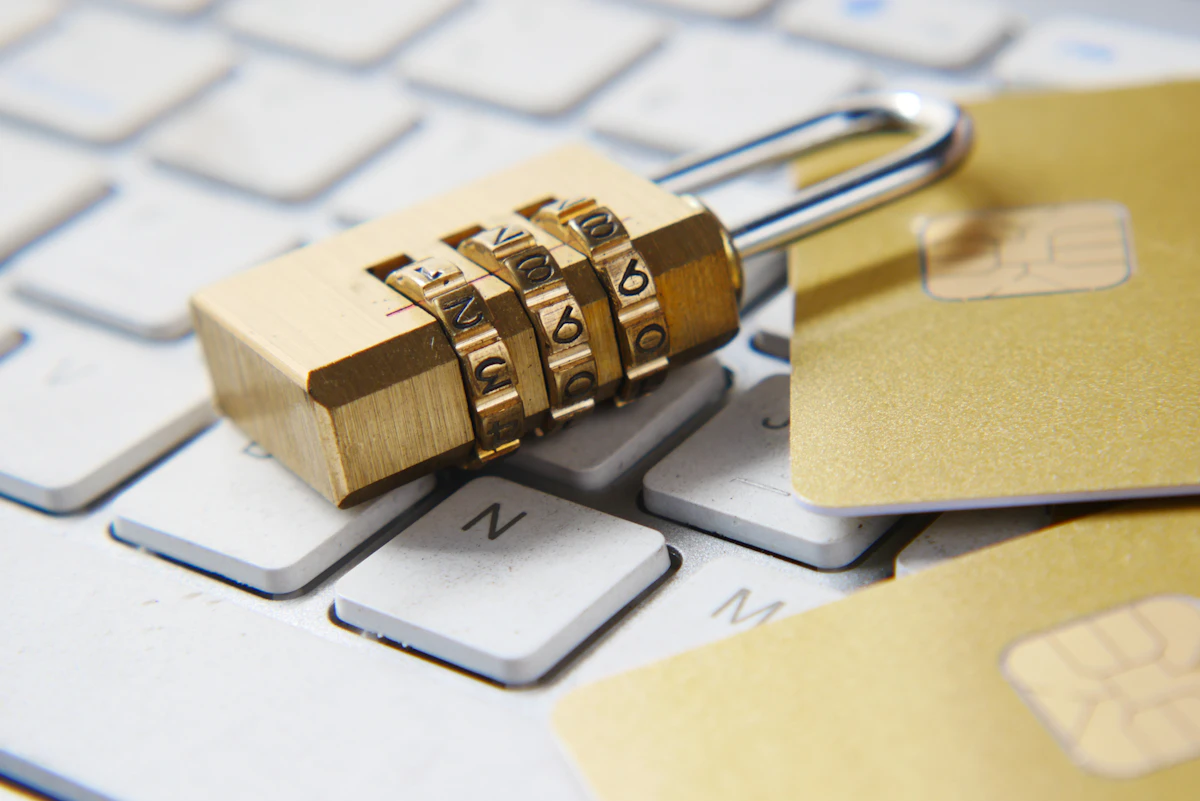
Secure Folder is built on Samsung’s Knox security platform. This isn't just software-level protection; it’s tied into the actual hardware (the processor) of your phone. When you move something into the Secure Folder, it is encrypted and locked behind a separate key. If someone manages to get into your phone because you left it unlocked on a table, they still can't get into your Secure Folder without a second, different PIN or fingerprint.
The "magic" of Secure Folder is that it lets you run clones of apps. For instance, I have my main Instagram account on my regular phone, but I have a "work" Instagram inside the Secure Folder. They don't share data. They don't see each other's files. If a malicious app somehow gets onto your main phone, it can't "reach" into the Secure Folder to grab your private data. It’s a perfect way to isolate apps that you don't fully trust but still need to use. I often use it for banking apps or travel apps that I know are a bit "grabby" with permissions. It keeps them in a digital cage where they can't see my main contacts or my primary photo gallery.
Setting it up
To get started, pull down your notification shade and look for the Secure Folder icon in your Quick Settings. If it's not there, go to Settings > Security and privacy > Secure Folder. You'll need to sign in with your Samsung account. This is the first thing that surprised me: you have to have a Samsung account to use it. It's a bit of a trade-off for the extra security, as it allows you to reset the folder if you forget your password (though I recommend turning off "Remote Unlock" if you're really hardcore about privacy).
Once it's set up, you'll see a new icon in your app drawer. Open it, and you'll find a clean slate. You can tap the "+" icon to add apps from your main phone. When you add an app, it doesn't "move" it; it creates a brand new, fresh installation. You’ll have to log in again. You can also move files — like photos or PDFs — into the folder by selecting them in the "My Files" app or "Gallery," tapping the three dots, and choosing "Move to Secure Folder."
I highly recommend changing the icon and the name of the folder. If you tap the three dots inside the Secure Folder and go to Customise, you can change the name to something boring like "Trip Planner" or "Recipes" and change the icon to something innocuous. That way, even if someone is looking at your app list, they won't even know there's a locked vault sitting right in front of them. It's a classic bit of "security through obscurity" that actually works surprisingly well in the real world.
Three common mistakes

The first big mistake is using the same PIN for your phone and your Secure Folder. If you do this, you've defeated half the purpose. If someone watches you unlock your phone at a bar, they now also have the key to your vault. Always use a unique, complex PIN or a different fingerprint for the folder. I actually use my middle finger for the Secure Folder and my thumb for the main phone. It sounds 007-ish, but it's a simple way to keep the two environments totally separate.
The second mistake is forgetting about notifications. By default, apps inside the Secure Folder can still show notifications on your main lock screen. If you're trying to keep an app private, having a message from it pop up on your screen kind of ruins the surprise. Go into the Secure Folder settings, tap Notifications and display, and set it to "Hide content" or turn them off entirely. Nothing is more annoying than having a "hidden" app announce its presence to anyone glancing at your phone.
The third mistake is not realizing that backups are separate. If you back up your phone using Google or a Computer, it often doesn't include the contents of the Secure Folder. Samsung used to have a dedicated Secure Folder cloud backup, but they've changed how this works in recent One UI versions (it now often uses "Temporary Cloud Backup"). A concrete example: my friend lost his Galaxy S23 and thought his private business documents were safe because they were in the Secure Folder. They were safe — so safe that even he couldn't get them back because he hadn't manually backed them up to a separate encrypted drive. Don't be that guy. If it's important enough to be in the vault, it's important enough to have a secondary (secure) backup elsewhere.
One small caveat: Secure Folder can be a bit of a battery hog if you're running powerful apps in both your main space and the folder simultaneously. Your phone is essentially running two systems at once, so expect your battery to dip a little faster if you're multitasking between the two. But for the security it provides, I think it's a small price to pay.
Key takeaways
- Secure Folder is a separate encrypted profile, not just a hidden gallery.
- Use a different lock from your main screen lock.
- Keep the launcher icon hidden for maximum benefit.
Frequently asked questions
- Does Secure Folder work on non-Samsung phones?
- No. It depends on Samsung Knox hardware.
References & further reading
Continue reading
Related guides
Secure Your Google Account on Android: 2FA, Passkeys, and Recovery
Your Google account is the master key to everything on your Android phone. Here's the four-step lockdown.
7 min read · Updated 24 Jun 2026

Setting a Strong Screen Lock on Android (PIN, Pattern, Biometrics)
The lock screen is your phone's last line of defence. Most people get it wrong.
6 min read · Updated 24 Jun 2026

Set Up Find My Device on Android the Right Way
The new Find My Device network works offline using nearby Android phones. Here's how to enable everything.
7 min read · Updated 24 Jun 2026