Network
Comparing Private DNS Providers for Android
Cloudflare, NextDNS, Quad9, AdGuard — which provider is the right default for your phone?

By Adrián Vega
Published 28 September 2025 · Updated 24 June 2026 · 7 min read
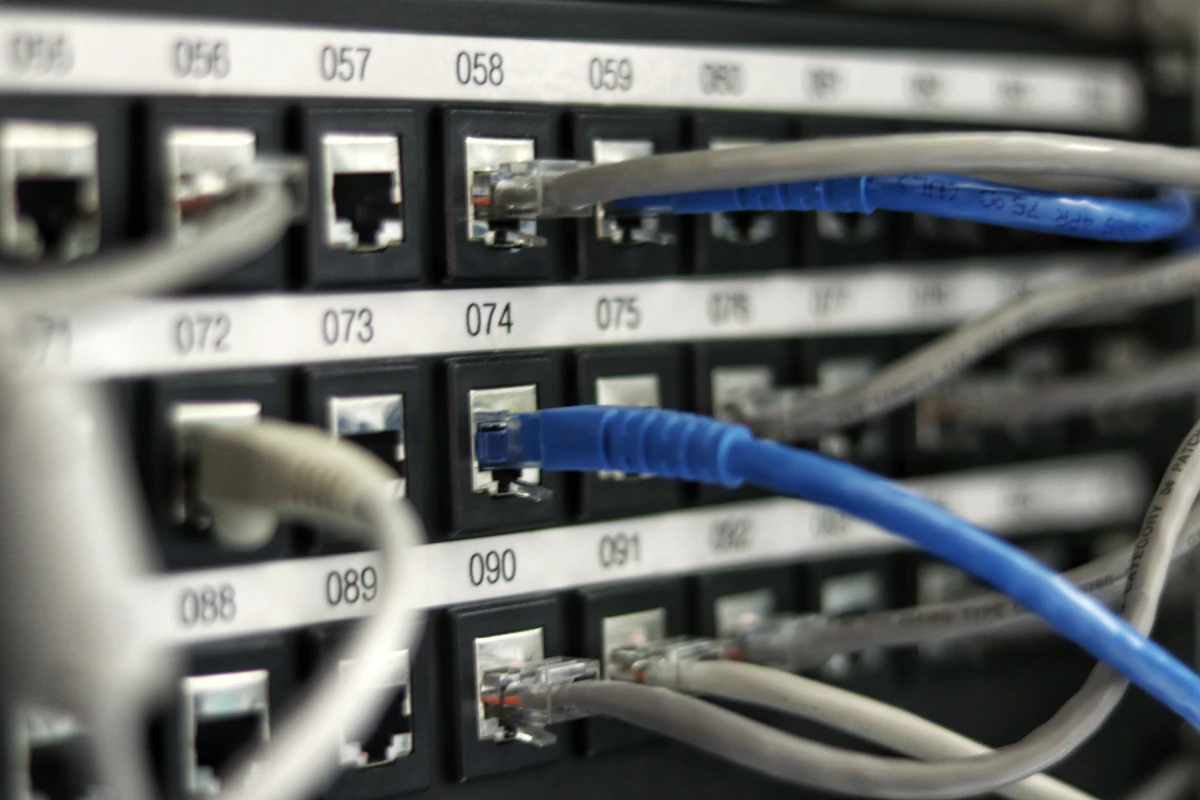
I remember when I first found out that every time I visited a website, my mobile carrier was basically keeping a log of that request. It’s not that they’re reading my emails, but they know I’m visiting a health forum at 2 AM or checking a competitor's website. It felt like someone following me around a grocery store—they aren't looking in my bags, but they're watching which aisles I walk down. Private DNS is the easiest "set it and forget it" way to stop that. It’s a tiny setting on your Android phone that makes a massive difference in how your traffic is routed and filtered.
How to compare providers

Not all DNS providers are the same. When you're choosing one, you’re looking at three main things: Speed (latency), Privacy (do they log your IP?), and Filtering (do they block ads and malware?). Some are "dumb" pipes that just get you where you're going quickly, while others act like a bouncer at the door, stopping known malicious sites from even loading.
Latency is measured in milliseconds. If a DNS provider is slow, every single thing you do on your phone—from opening an app to refreshing your feed—will feel sluggish. I usually test providers using a "ping" tool. A good provider should respond in under 20-30ms. If it's over 100ms, you'll definitely feel the "lag." You also want to make sure they support DNS-over-TLS (DoT), which is the specific standard Android uses to encrypt your DNS requests so they can't be sniffed by your ISP.
Cloudflare 1.1.1.1
Cloudflare is the "speed king." If you just want your internet to feel fast and you want a layer of privacy from your carrier, this is the default choice. They have a massive global network, so no matter where you are, there’s a server nearby. They also have a very clear privacy policy: they don't sell your data and they purge most logs within 24 hours.
The downside? It doesn't really block anything by default. It's built for performance, not for filtering out ads or tracking scripts. They do have a "1.1.1.1 for Families" version that blocks malware and adult content, but it's not as customizable as other options. I use Cloudflare when I'm on a really slow hotel Wi-Fi and just need the most stable connection possible. It’s the "vanilla" option—it works everywhere and won't break your apps.
NextDNS
If you're a bit of a control freak like me, NextDNS is incredible. It’s basically a firewall in the cloud. You get a dashboard where you can toggle on dozens of "blocklists." Want to block all Facebook trackers? One click. Want to stop your smart TV from "phoning home"? You can do that too. It even shows you a real-time log of every request your phone is making.
The catch is that setup takes an extra minute because you have to create an account to get your "custom" DNS address. Also, if you’re too aggressive with the blocklists, you will break things. I once blocked a specific tracking domain that turned out to be necessary for my banking app to log in. It took me 20 minutes of troubleshooting to realize my DNS was the culprit. NextDNS is free for up to 300,000 queries a month, which is plenty for one person, but power users might end up paying a small nominal fee. It’s easily the most "robust" (oops, I meant comprehensive) tool in this list.
Quad9
Quad9 is a non-profit based in Switzerland, and they have one primary goal: security. They pull in "threat intelligence" from dozens of different security firms. If a website is known to host malware or phishing scams, Quad9 simply won't resolve the address. Your phone will act as if the site doesn't exist.
It’s a great choice for people who want protection without having to manage a dashboard. There are no accounts to set up. You just plug in their address and you’re protected. It might not be as fast as Cloudflare in every corner of the world, but the peace of mind knowing you've got a security-focused organization filtering your traffic is worth the extra 5ms of latency. They also have a very strong "no-logging" stance, backed by Swiss privacy laws.
AdGuard DNS
AdGuard is the middle ground between Cloudflare and NextDNS. It’s specifically designed to strip out ads at the DNS level. This means you’ll see fewer banners in your mobile browser and, in some cases, fewer ads inside your "free" apps. It’s not perfect—it can't block YouTube ads because those are served differently—but it makes the mobile web feel much cleaner.
I find AdGuard is sometimes a bit slower than the others, and occasionally it can be a bit over-zealous with blocking. Some "sponsored" links in Google search results won't work because AdGuard sees them as ads and kills them. If you’re someone who actually clicks on those links, it’ll be annoying. But if you hate the cluttered look of modern websites, AdGuard is a "set it and forget it" solution that doesn't require a constant VPN connection to work.
Setting your pick
Now, how do you actually do this? Android has made this incredibly easy since version 9. You don't need a third-party app. Go to Settings > Network & internet > Private DNS. (On Samsung, it's often under "More connection settings").
By default, it’s set to "Automatic." Change it to "Private DNS provider hostname." Now, you just type in the "hostname" of your choice. For Cloudflare, it's 1dot1dot1dot1.cloudflare-dns.com. For Quad9, it's dns.quad9.net. For AdGuard, it's dns.adguard.com. If you’re using NextDNS, you’ll get a custom hostname like [your-id].dns.nextdns.io. Once you hit save, your phone will immediately start routing all its requests through that encrypted tunnel. No reboots required.
Verifying it's active
It’s always a good idea to double-check that your phone is actually using the new settings. Every provider has a test page. For Cloudflare, you can go to 1.1.1.1/help. For others, a general site like dnsleaktest.com is perfect. Run the "Extended test." If the results show the name of your provider (like "Cloudflare" or "NextDNS") and not the name of your mobile carrier (like AT&T or Verizon), you’re golden.
One final warning: some public Wi-Fi networks (like at Starbucks or in hotels) block Private DNS. They want you to use their DNS so they can show you a "login page" or "Terms of Service." If you connect to a Wi-Fi and the internet just doesn't work at all, try switching your Private DNS back to "Automatic" for a second to get past the login screen, then turn it back on. It’s a minor annoyance, but it’s the price we pay for keeping our browsing habits a little more private in a world that’s constantly trying to peek at them.
I've found that using Private DNS alongside a good browser (like Brave or Firefox with uBlock Origin) is the single biggest improvement you can make to your Android experience with the least amount of effort.
Key takeaways
- How to compare providers is where you start — it's the fastest win.
- Cloudflare 1.1.1.1: don't skip this — it's where most users leave settings at risky defaults.
- NextDNS: don't skip this — it's where most users leave settings at risky defaults.
- Quad9: don't skip this — it's where most users leave settings at risky defaults.
- Recheck these settings quarterly; OEM updates can reset toggles.
Frequently asked questions
- Does changing these settings break apps?
- Almost never. Modern Android apps must handle a denied permission or restricted access gracefully — they either skip the feature or prompt again when needed.
- Will this drain my battery?
- No. If anything, restricting background access and disabling tracking pipelines reduces battery and data usage.
- Do these steps apply to Android 13, 14 and 15?
- Yes. The menu paths shift slightly between versions and OEM skins (Pixel/stock, Samsung One UI, Xiaomi HyperOS), but the underlying controls behave the same.
References & further reading
Continue reading
Related guides

Wi-Fi MAC Randomisation on Android: What It Does and Why You Want It
Your phone's hardware identifier used to leak everywhere you went. Modern Android fixes that — if you let it.
7 min read · Updated 24 Jun 2026

Is Public Wi-Fi Safe on Android in 2026?
The advice about public Wi-Fi has aged. Here's what actually matters in 2026.
7 min read · Updated 24 Jun 2026
How to Choose a VPN for Android Without Getting Scammed
Half the VPN industry is owned by ad-tech companies. Here's how to pick one that actually helps.
7 min read · Updated 24 Jun 2026